Connect from the UI
Management Center starts a Hazelcast client for each cluster that it is connected to. You can configure the Hazelcast client for Management Center, using the UI.
To connect Management Center to a Hazelcast cluster from the UI, you have two options:
-
Use the form fields.
-
Upload a client configuration file in XML or YAML format. (Recommended for more complex configurations.)
If you enabled TLS/SSL on a Hazelcast cluster, you must use this option to configure the client TLS settings. For more information about client TLS configuration, see TLS in the Platform documentation.
When connecting to multiple clusters from the same instance of Management Center, make sure that the cluster names are unique. Management Center does not support simultaneous connections to more than one cluster with the same cluster name.
Use the form fields
-
Click Cluster Connections in the Top Bar.
-
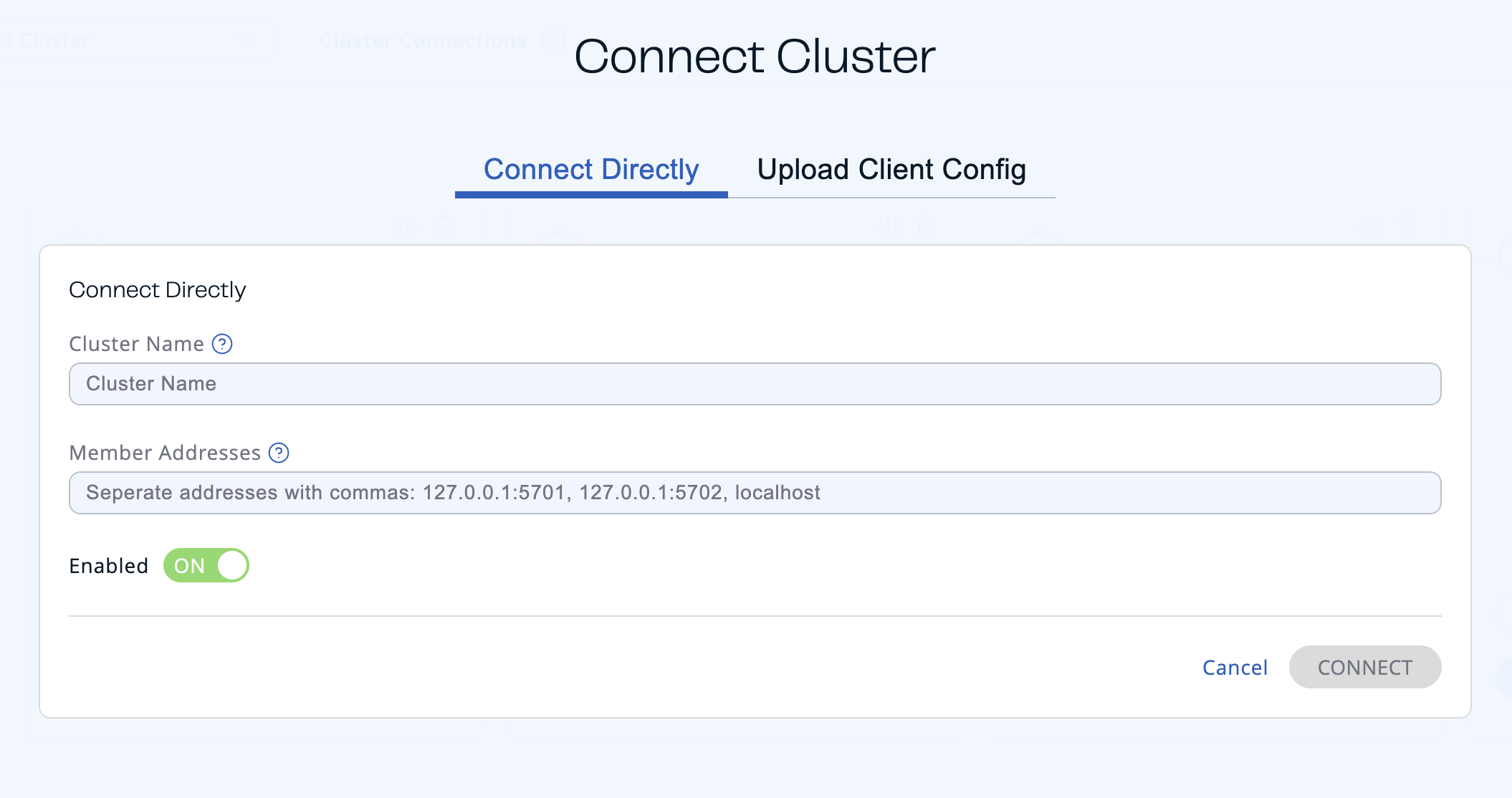
Click Add to configure a new connection.
-
Enter the name of the cluster that you want to connect to.
-
Enter the hostnames or IP addresses of cluster members that you want to connect to. Press Enter after each address to add it to the list.
As soon as Management Center connects to one member, it will auto-discover the other members of the cluster. But, for fault-tolerance, it's best to add more than one member's address to the list.
-
Make sure that Enabled is On.
If this field is Off, Management Center will save the configuration but will not try to connect to the cluster.
-
Click Connect.
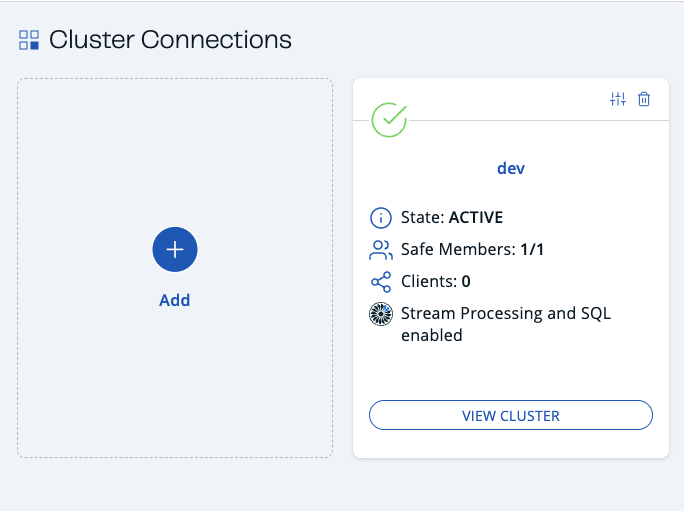
You will see the following:
| Field | Description |
|---|---|
| State | Current state of the cluster. |
| Safe Members | Total number of members in the cluster. |
| Clients | Total number of clients currently connected to the cluster, not including the Management Center client. See Clients. |
If your cluster has the Jet engine enabled, you will also see that the cluster supports streaming and SQL.
To connect to another cluster, repeat these steps.
Use a client configuration file
-
Create a client configuration file.
- XML
- YAML
For help creating a client configuration file, see the full example reference on GitHub.
Example XML filexml<hazelcast-client xmlns="http://www.hazelcast.com/schema/client-config"xmlns:xsi="http://www.w3.org/2001/XMLSchema-instance"xsi:schemaLocation="http://www.hazelcast.com/schema/client-confighttp://www.hazelcast.com/schema/client-config/hazelcast-client-config-5.0.xsd"><cluster-name>dev</cluster-name><network><cluster-members><address>127.0.0.1:5701</address><address>127.0.0.2:5702</address></cluster-members></network></hazelcast-client>For help creating a client configuration file, see the full example reference on GitHub.
Example YAML fileyamlhazelcast-client:cluster-name: devnetwork:cluster-members:- 127.0.0.1:5701- 127.0.0.2:5702As soon as Management Center connects to one member, it will auto-discover the other members of the cluster. But, for fault-tolerance, it's best to add more than one member's address to the
cluster-membersconfiguration. -
Click Cluster Connections in the Top Bar.
-
Click Add to configure a new connection.
-
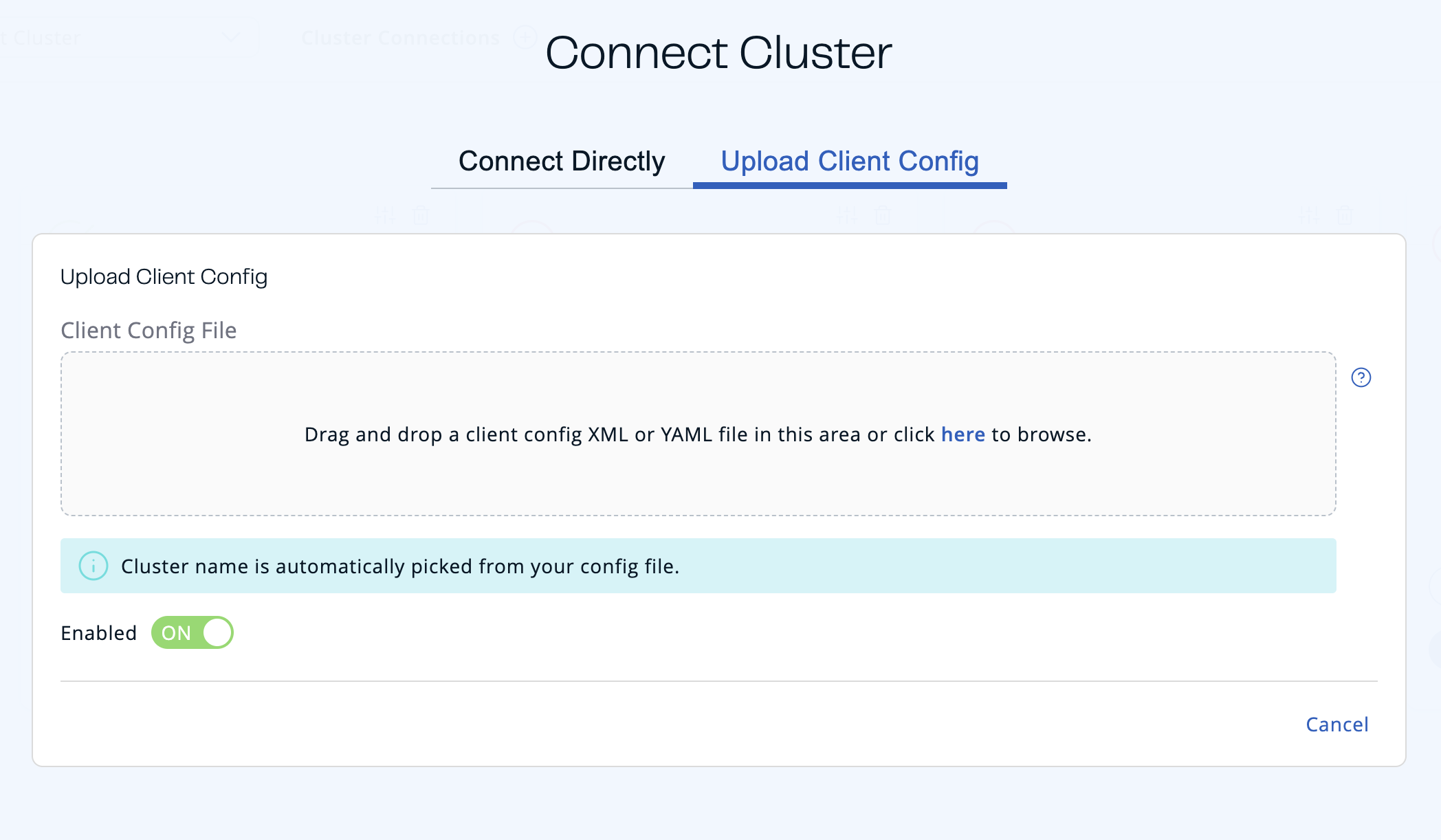
Go to the Upload Client Config tab.
-
Either drag and drop your configuration file into the box or click to browse your file system.
-
Make sure that Enabled is On.
If this field is Off, Management Center will save the configuration but will not try to connect to the cluster.
-
Click Save Configuration.
You will see the following:
| Field | Description |
|---|---|
| State | Current state of the cluster. |
| Safe Members | Total number of members in the cluster. |
| Clients | Total number of clients currently connected to the cluster, not including the Management Center client. See Clients. |
If your cluster has the Jet engine enabled, you will also see that the cluster supports streaming and SQL.
To connect to another cluster, repeat these steps with a different configuration file.
Management Center requires a connection to every member in order to collect its state, events and metrics so unisocket connections are not supported. An error message appears if the configuration uses a unisocket connection.
Cluster connection diagnosis
If Management Center cannot connect to a cluster, run the cluster connection diagnostics by clicking DIAGNOSE.
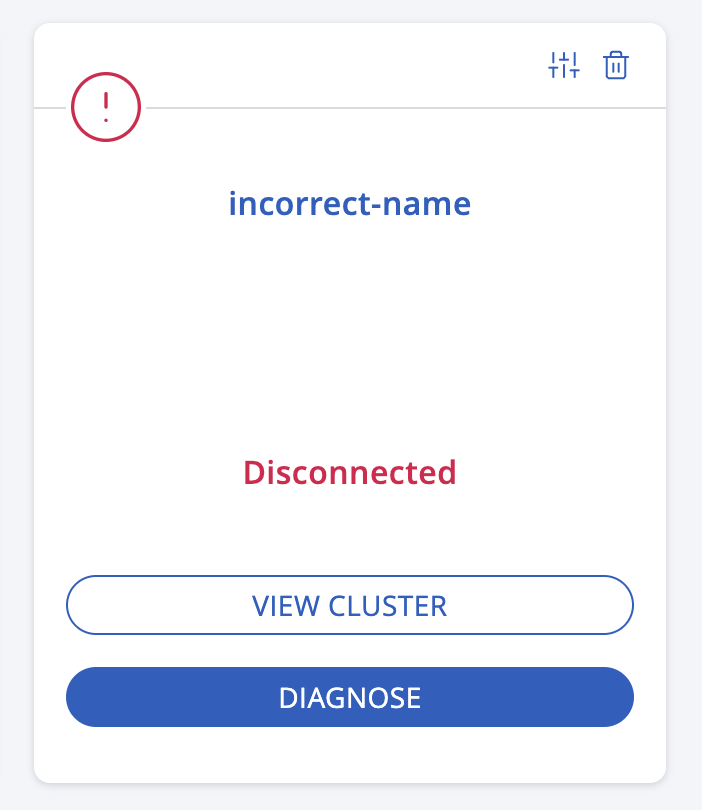
Management Center runs various connectivity checks including whether:
- The hostname can be resolved.
- The connection ports are open.
- The configured cluster name matches the one configured on a member.
- Management Center can be authenticated by the members.
- Management Center has permissions to manage the cluster.
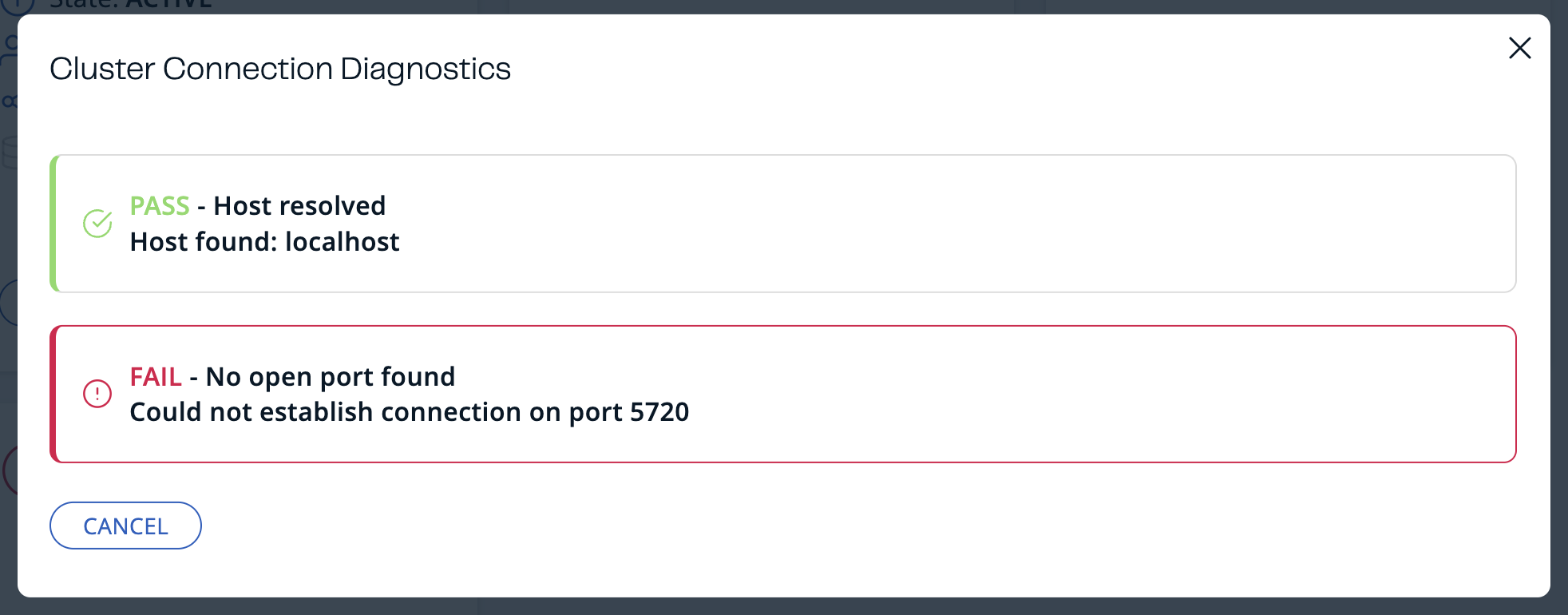
The connection diagnostics process may take up to 30 seconds—wait until you receive a FAIL check with an explanation or cancel the diagnostics.
Remove a cluster connection
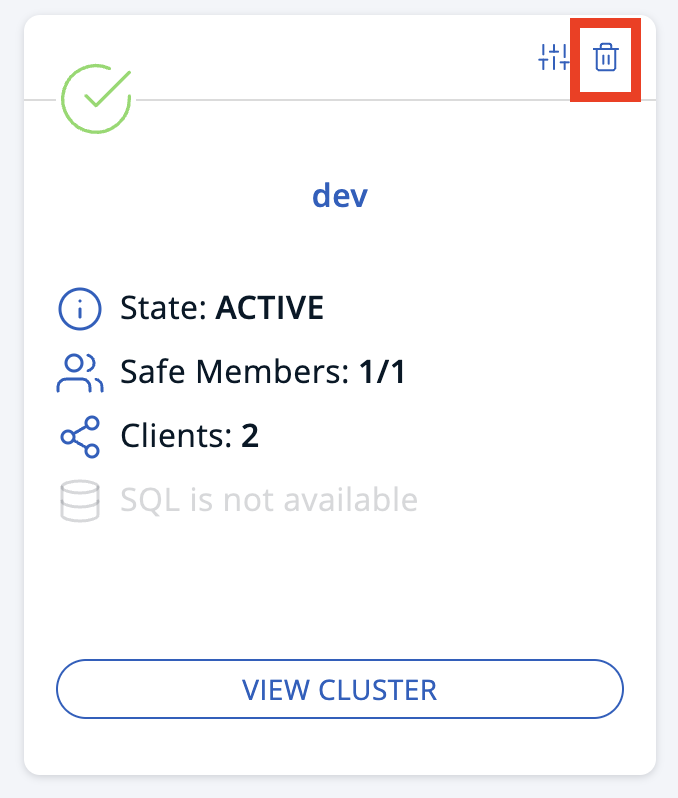
To remove an existing connection to a cluster, go to Cluster Connections in the Top Bar and click the trash icon above the name of the cluster that you want to disconnect from Management Center.
Edit a cluster connection
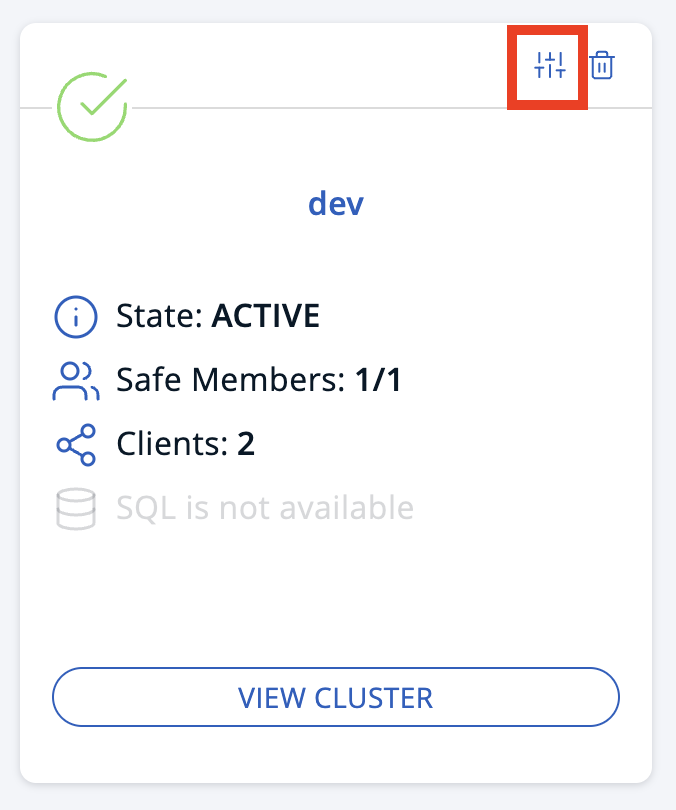
To edit an existing connection, go to Cluster Connections in the Top Bar and click the configure icon (next to the trash icon) above the name of the cluster.
If you connected to the cluster from the form fields, edit the form.
If you connected to the cluster using a client configuration file, upload a new configuration file.
To see the existing configuration file, click the eye icon above the box.
Next steps
Explore the Clusters dashboard.
You can also preconfigure a cluster connection before Management Center starts, using hz-mc conf or a YAML declarative configuration file.