Start a Local Cluster from Binary
This tutorial introduces you to Hazelcast in a client/server topology. At the end of this tutorial, you'll know how to start a cluster from the binary distribution, store data in memory, visualize your data and more.
Before You Begin
To complete this tutorial, you need the following:
| Prerequisites | Useful resources |
|---|---|
| Any supported JDK | |
| A full Hazelcast distribution | Install Hazelcast Enterprise Edition |
| Your internal IP address | How to Find Your Internal IP Address |
Step 1. Configure the Name of the Cluster
Cluster configuration is an important step in creating a Hazelcast cluster. In this step, you learn how to configure a cluster by customizing its name.
-
Open the
hazelcast.xmlfile in thehazelcast-5.7.2/configdirectory. -
Change the value of the
hazelcast.cluster-namefield tohello-world.xml<hazelcast><cluster-name>hello-world</cluster-name></hazelcast> -
Save and exit the file.
-
Open the
hazelcast-client.xmlfile in thehazelcast-5.7.2/configdirectory. -
Add the same
cluster-nameconfiguration to thehazelcast-clientelement.xml<hazelcast-client><cluster-name>hello-world</cluster-name></hazelcast-client> -
Save and exit the file.
Step 2. Start a Local Member
Hazelcast clusters consist of servers called members. These members communicate with each other to form a distributed network. It's these servers that store and process your data in memory.
In this step, you use the cluster management scripts to start a single-member cluster and check its status.
-
Start a member.
- Mac
- Linux
- Windows
shellbin/hz-startshellbin/hz-startshellbin/hz-start.batYou should see your cluster's name in the console:

-
Open a new terminal window and use the
clustercommand to check the state of your member.The
--configflag tells the CLI client to connect to the cluster, using the configuration in thehazelcast-client.xmlfile.- Mac
- Linux
- Windows
shellbin/hz-cli --config config/hazelcast-client.xml clustershellbin/hz-cli --config config/hazelcast-client.xml clustershellbin/hz-cli.bat --config config/hazelcast-client.xml clusterYou should see something like the following:
State: ACTIVE (1)Version: 5.7.2Size: 1 (2)ADDRESS UUID[192.168.0.2]:5701 27a73154-f4bb-477a-aef2-27ffa6f03a2d (3)- The state of the cluster. An active cluster is one that is operating without restrictions.
- The number of members in the cluster.
- The internal IP address and UUID of the member.
Step 3. Write Data to Memory
Hazelcast has lots of distributed data structures available for writing data to memory in your cluster. One of the most popular ways of writing data to memory is to use a distributed map. Maps store key/value pairs called entries, which are replicated and distributed across a cluster.
- SQL
- Java
- C++
- C Sharp
- Node.js
- Python
- Go
-
In a new terminal window, start the SQL shell.
Mac and Linuxshellbin/hz-cli --config config/hazelcast-client.xml sqlWindowsshellbin/hz-cli.bat --config config/hazelcast-client.xml sql -
Create a map and add data to it.
sqlCREATE MAPPING my_distributed_map TYPE IMap OPTIONS ('keyFormat'='varchar','valueFormat'='varchar');SINK INTO my_distributed_map VALUES('1', 'John'),('2', 'Mary'),('3', 'Jane');OK
-
Add the following to your file:
javaimport com.hazelcast.client.HazelcastClient;import com.hazelcast.client.config.ClientConfig;import com.hazelcast.core.HazelcastInstance;import com.hazelcast.map.IMap;public class MapSample {public static void main(String[] args) {ClientConfig clientConfig = new ClientConfig();clientConfig.setClusterName("hello-world"); (1)HazelcastInstance client = HazelcastClient.newHazelcastClient(clientConfig); (2)IMap <String,String> map = client.getMap("my-distributed-map"); (3)(4)map.put("1", "John");map.put("2", "Mary");map.put("3", "Jane");}}1 The name of the cluster that you want to connect to.2 Create a client instance, using your configuration.3 Create a map calledmy-distributed-map.4 Write some keys and values to the map.
-
Add the following to your file:
cpp#include <hazelcast/client/hazelcast_client.h>int main() {hazelcast::client::client_config config;config.set_cluster_name("hello-world"); (1)auto client = hazelcast::new_client(std::move(config)).get(); (2)auto map = client.get_map("my-distributed-map").get(); (3)(4)map->put<std::string, std::string>("1", "John").get();map->put<std::string, std::string>("2", "Mary").get();map->put<std::string, std::string>("3", "Jane").get();return 0;}1 The name of the cluster that you want to connect to.2 Create a client instance, using your configuration.3 Create a map calledmy-distributed-map.4 Write some keys and values to the map.
-
Add the following to your file:
csusing Hazelcast.Client;namespace Hazelcast.Examples.Org.Website.Samples{public class MapSample{public static void Run(string[] args){var options = new HazelcastOptionsBuilder().Build();options.ClusterName = "hello-world"; (1)var client = await HazelcastClientFactory.StartNewClientAsync(options); (2)var map = client.GetMap("my-distributed-map"); (3)(4)map.put("1", "John");map.put("2", "Mary");map.put("3", "Jane");}}}1 The name of the cluster that you want to connect to.2 Create a client instance, using your configuration.3 Create a map calledmy-distributed-map.4 Write some keys and values to the map.
-
Install the Node.js client library.
shellnpm install hazelcast-client -
Add the following to your file:
javascriptconst { Client } = require('hazelcast-client');(async () => {try {const client = await Client.newHazelcastClient({clusterName: 'hello-world', (1)}); (2)const map = await client.getMap('my-distributed-map'); (3)(4)await map.put('1', 'John');await map.put('2', 'Mary');await map.put('3', 'Jane');} catch (error) {console.error('Error occurred:', error);}})();1 The name of the cluster that you want to connect to.2 Create a client instance, using your configuration.3 Create a map calledmy-distributed-map.4 Write some keys and values to the map.
-
Install the Python client library.
shellpip install hazelcast-python-client -
Add the following to your file:
pythonimport hazelcastif __name__ == "__main__":client = hazelcast.HazelcastClient(cluster_name="hello-world", (1)) (2)# Create a Distributed Map in the clustermap = client.get_map("my-distributed-map").blocking() (3)(4)map.put("1", "John")map.put("2", "Mary")map.put("3", "Jane")1 The name of the cluster that you want to connect to.2 Create a client instance, using your configuration.3 Create a map calledmy-distributed-map.4 Write some keys and values to the map.
-
Install the Python client library.
shellgo get github.com/hazelcast/hazelcast-go-client -
Add the following to your file:
goimport ("context""github.com/hazelcast/hazelcast-go-client")func mapSampleRun() {// error handling is omitted for brevityconfig := hazelcast.Config{}config.Cluster.Name = "hello-world" (1)ctx := context.TODO()client, _ := hazelcast.StartNewClientWithConfig(ctx, config) (2)mp, _ := client.GetMap(ctx, "my-distributed-map") (3)(4)mp.Put(ctx, "1", "John")mp.Put(ctx, "2", "Mary")mp.Put(ctx, "3", "Jane")}1 The name of the cluster that you want to connect to.2 Create a client instance, using your configuration.3 Create a map calledmy-distributed-map.4 Write some keys and values to the map.
The configuration builder is not thread-safe. Complete the configuration in a single go routine. Do not pass the builder to other go routines without synchronizing them.
Step 4. Read Data from Memory
You can read the data that you just wrote to memory by connecting to the member with a different client and requesting data from the member.
- SQL
- Java
- C++
- C Sharp
- Node.js
- Python
- Go
-
In a new terminal window, start the SQL shell.
Mac and Linuxshellbin/hz-cli --config config/hazelcast-client.xml sqlWindowsshellbin/hz-cli.bat --config config/hazelcast-client.xml sql -
Query all data in the map.
sqlSELECT * FROM my_distributed_map;+--------------------+--------------------+|__key |this |+--------------------+--------------------+|3 |Jane ||1 |John ||2 |Mary |+--------------------+--------------------+ -
Exit the SQL shell.
shellexit
import com.hazelcast.client.HazelcastClient;
import com.hazelcast.client.config.ClientConfig;
import com.hazelcast.core.HazelcastInstance;
import com.hazelcast.map.IMap;

public class MapSample {
  public static void main(String[] args) {

    ClientConfig clientConfig = new ClientConfig();
    clientConfig.setClusterName("hello-world");

    HazelcastInstance client = HazelcastClient.newHazelcastClient(clientConfig);

    (1)
    IMap map = client.getMap("my-distributed-map");
    for (Map.Entry<String, String> entry : map.entrySet()) {
      System.out.println(entry.getKey() + " " + entry.getValue());
    }

    client.shutdown(); (2)
  }
}
#include <hazelcast/client/hazelcast_client.h>

int main() {
  hazelcast::client::client_config config;
  config.set_cluster_name("hello-world");

  auto client = hazelcast::new_client(std::move(config)).get();

  auto map = client.get_map("my-distributed-map").get();

  (1)
  auto map = client.get_map("my-distributed-map").get();
  auto entries = map->entry_set<std::string, std::string>().get();
  for (auto &entry : map->entry_set<std::string, std::string>().get()) {
    std::cout << entry.first << " " << entry.second << std::endl;
  }

  client.shutdown(); (2)

  return 0;
}
using Hazelcast.Client;
using System;
using System.Threading.Tasks;

namespace Hazelcast.Examples.Org.Website.Samples
{
  public class MapSample
  {
    public static async Task Main(string[] args)
    {
      var options = new HazelcastOptionsBuilder().Build();
      options.ClusterName = "hello-world";

      await using var client = await HazelcastClientFactory.StartNewClientAsync(options);

      (1)
      var map = await client.GetMapAsync<string, string>("my-distributed-map");
      foreach (var entry in await map.GetEntriesAsync())
        Console.WriteLine($"{entry.Key}: {entry.Value}");

      client.Shutdown(); (2)
    }
  }
}
const { Client } = require('hazelcast-client');

(async () => {
  try {
    const client = await Client.newHazelcastClient({
      clusterName: 'hello-world',
    });

    (1)
    const map = await client.getMap('my-distributed-map');
    for (const [key, value] of await map.entrySet()) {
        console.log(`${key} ${value}`);
    }

    await hz.shutdown(); (2)

  } catch (error) {
    console.error('Error occurred:', error);
  }
})();
import hazelcast

if __name__ == "__main__":
  client = hazelcast.HazelcastClient(
  cluster_name="hello-world",
  )

  (1)
  my_map = client.get_map("my-distributed-map").blocking()
  for key, value in my_map.entry_set():
    print(key, value)

  client.shutdown() (2)
import (
	"context"
	"fmt"
	"github.com/hazelcast/hazelcast-go-client"
)

func mapSampleRun() {
  config := hazelcast.Config{}

  config.Cluster.Name = "hello-world"

  ctx := context.TODO()
  client, err := hazelcast.StartNewClientWithConfig(ctx, config)

  (1)
  myMap, err := client.GetMap(ctx, "my-distributed-map")
  if err != nil {
    panic(err)
  }
  myMap.Put(ctx, "1", "John")
  myMap.Put(ctx, "2", "Mary")
  myMap.Put(ctx, "3", "Jane")
  entries, err := myMap.GetEntrySet(ctx)
  if err != nil {
    // handle the error
  }
  for key, value := range entries {
    fmt.Println(key, value)
  }

  _ = client.Shutdown(ctx) (2)
}
Step 5. Set up Management Center
Management Center is a user interface for managing and monitoring your cluster.
In this step, you start a local instance of Management Center and use it to view your cluster's statistics.
-
Start Management Center.
- Mac
- Linux
- Windows
shellmanagement-center/bin/hz-mc startshellmanagement-center/bin/hz-mc startshellmanagement-center/bin/mc-start.cmd -
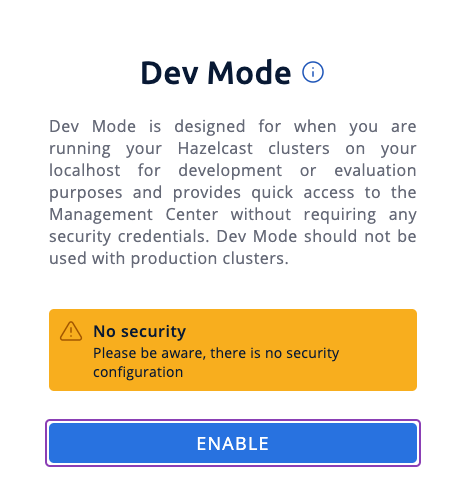
In a web browser, go to localhost:8080 and enable dev mode.
-
Enter your cluster's name (
hello-world) and your internal IP address.You should see that you cluster is in an active state and has a single member. An active cluster is one that is operating without restrictions. To learn more about cluster states, see Cluster States.

-
Click View Cluster and go to Clients.
You should see that two clients are connected to your cluster member: Management Center and the Hazelcast client that you used to write data to a map.
-
Go to Storage > Maps.
You should see that your cluster has a map called
my-distributed-mapwith three entries (keys and values). You'll also see the total amount of memory that those entries are taking up in your cluster.
For now, the backup memory is 0 because you don't have any other members in your cluster on which to back up your map entries.
To back up your map, you need to scale up your cluster.
Step 6. Scale your Cluster
If your cluster starts to run out of memory, you can add more members to it and they will distribute their data across the new members.
Your cluster will even create a copy of any map entries and distribute them across other members of the cluster. This way, your data is secure in case of a single member failure.
In this step, you add two more members to your cluster.
-
Open a new terminal and run the
startscript to start another member.shellcd hazelcast-5.7.2bin/hz-start -
Repeat the previous step to start another member.
You should see that your members find and connect to each other automatically to form your
hello-worldcluster. You can learn more about how members do this in Discovery Mechanisms. note
noteRunning more than one member on a single host is useful for testing Hazelcast, but it's not suitable for production.
-
Back in Management Center, go to Storage > Maps again.
You should see that the backup memory is the same as the entry memory, meaning that all your map entries have now been copied and distributed among the other two cluster members.
-
To see how your map entries are distributed among members in your cluster, click my-distributed-map.
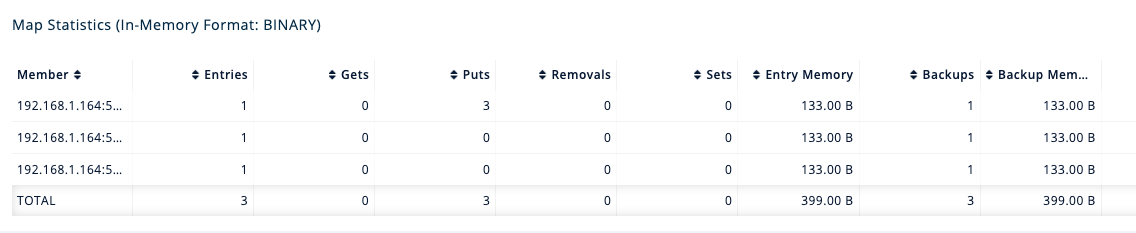
You should see that entries and their backups are distributed evenly across each member. This process is called partitioning.
Step 7. Simulate a Member Failure
If a member fails for any reason, the other cluster members use their backups to repartition the data across the remaining cluster members.
In the terminal of one of your running members, press Ctrl+C to shut down the member.
You should the Hazelcast Shutdown is completed message in the console.
In Management Center, you should also see that the amount of entry memory and backup memory has not changed. All your map entries are still in memory despite a member being shut down. The remaining Hazelcast members have repartitioned the data.
Next Steps
Now that you have a local cluster, you can continue your journey with the following tutorials:
- Get started with SQL by learning how to query data in your cluster.
- Get started with Data Processing by learning how to use the Java Jet API.
If you just want to go straight into deploying a production-ready cluster, see our production checklist.
Explore the tools Hazelcast offers for the following use cases:
Or, if you're interested in learning more about topics that we introduced in this tutorial, see the following resources: