
If you’ve set up dev mode, you can switch to a new security provider by disabling dev mode in the UI.
If you’ve set up any other security provider, you must use the hz-mc conf tool to reset the security provider before setting up a new one.
If you want to use the hz-mc conf tool to switch from dev mode to another security provider, you must reset the security provider first.
Use the UI
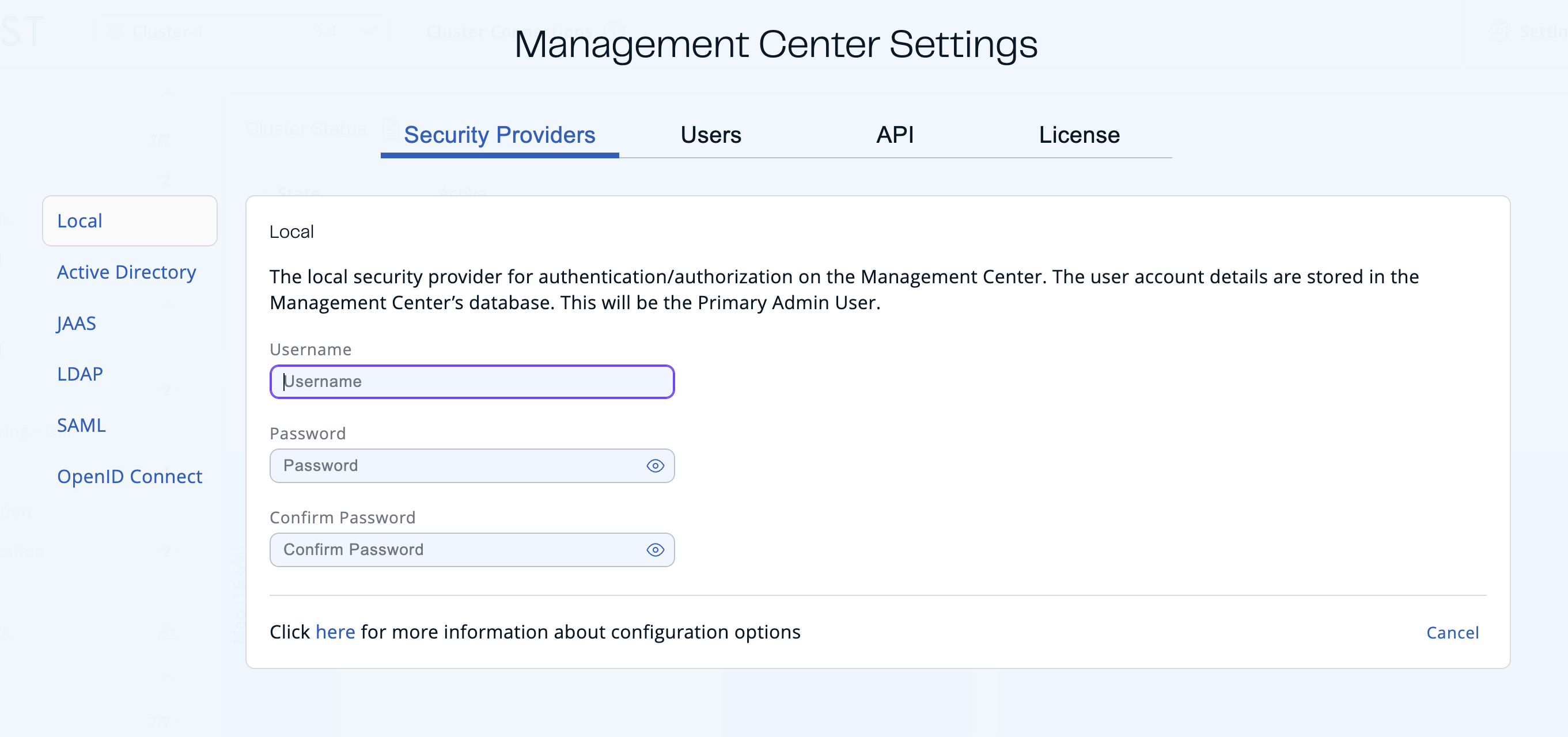
To switch to a different security provider from dev mode in the UI, go to Settings > Security Providers.
Use mc-conf
To switch to another security provider with the hz-mc conf tool, use the security reset task to reset the provider first.
This task deletes all existing user accounts and auth tokens.
Then, you can configure another local security provider. For help setting one up, see Security Providers
Use a YAML declarative configuration file (Beta)
A YAML declarative configuration file can never switch an already-active security provider to a different type — like hz-mc conf, it requires you to run hz-mc conf security reset first, then restart Management Center with the file. The one exception is the Dev Mode: since it isn’t a deliberately-configured provider, a file may declare any other provider type — including the local provider — while Dev Mode is active, and Management Center activates it directly, with no reset needed first. See Declarative configuration apply modes for details and examples.
Fetch the security provider details
You can fetch the configuration details of the security provider to validate if this is set correctly using the hz-mc conf tool with the security get task.
Sensitive fields such as password or clientSecret are masked in the output.
This can be done only when the Management Center web application is stopped.
If the security provider is not set you should see the following:
{
  "currentProvider" : null
}
If the Dev Mode is set you should see the following:
{
  "currentProvider" : "Dev Mode"
}
For the other security providers, you should see the list of the configured properties. For example, if the LDAP is configured you should see the following set of properties with the values which were set during the LDAP configuration:
{
  "configuration" : {
    "adminGroup" : "Admins",
    "startTls" : false,
    "url" : "ldap://localhost:56830",
    "nestedGroupSearch" : true,
    "password" : "****",
    "groupDn" : "ou=Groups,dc=mancenter,dc=hazelcast,dc=com",
    "userSearchFilter" : "uid={0}",
    "groupSearchFilter" : "uniquemember={0}",
    "readonlyUserGroup" : "Readers",
    "metricsOnlyGroup" : "Metrics",
    "userGroup" : "Writers",
    "userDn" : "ou=Users,dc=mancenter,dc=hazelcast,dc=com",
    "username" : "cn=admin,dc=mancenter,dc=hazelcast,dc=com"
  },
  "currentProvider" : "LDAP"
}