LDAP
You can use your existing LDAP server for authentication/authorization on the Management Center.
Set up the LDAP security provider
To set up LDAP, you need to configure settings in the UI, the hz-mc conf tool, or a YAML declarative configuration file.
- UI
- mc-conf
- YAML (Beta)
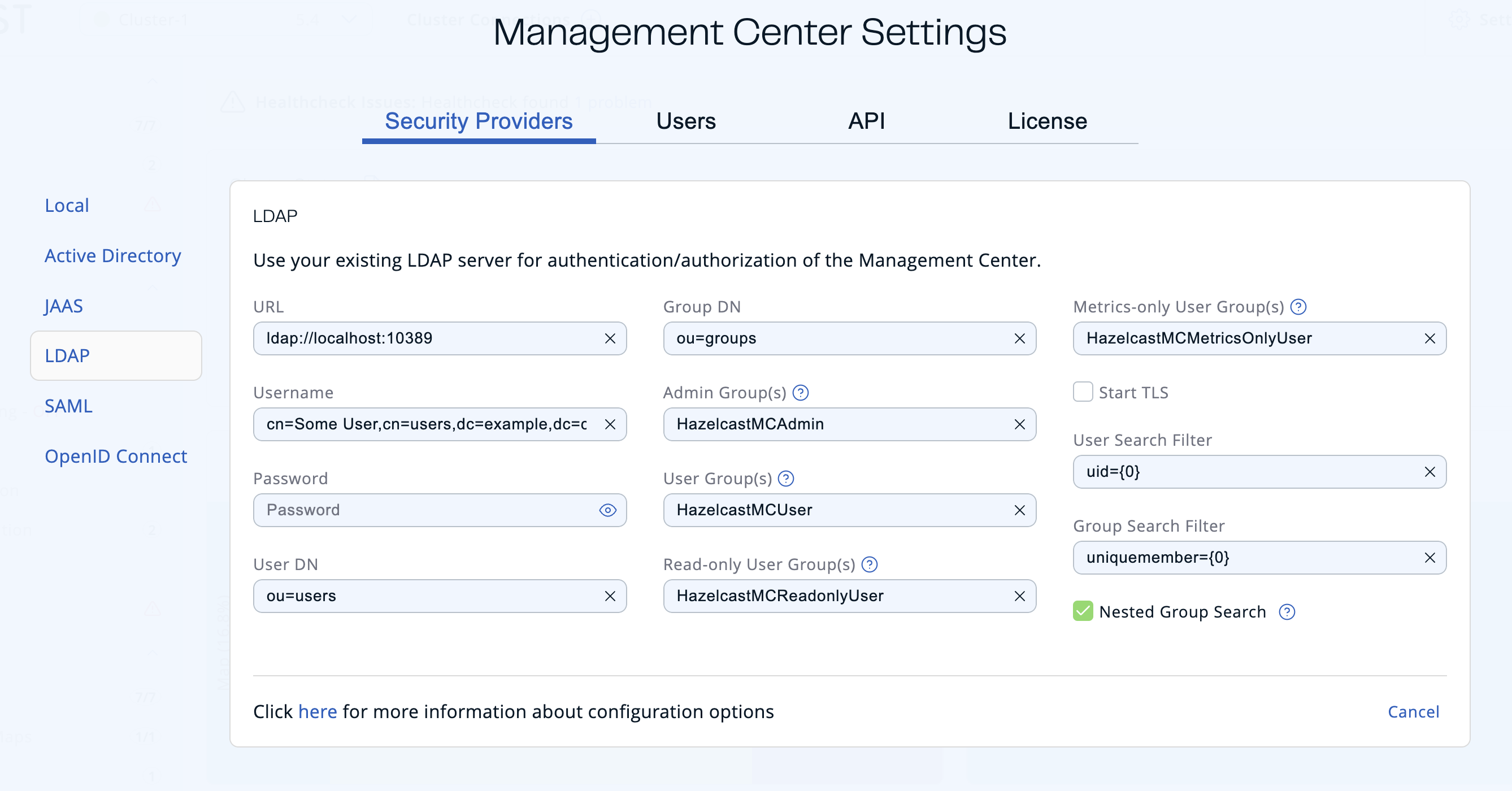
To set up the LDAP security provider in the UI, go to Settings > Security Providers > LDAP.
Use the ldap configure task. For help, use the -h flag or see Management Center Configuration Tool.
hz-mc conf ldap configure
mc-conf.bat ldap configure
Declare an ldap block under securityProvider in a YAML declarative configuration file:
securityProvider:
  ldap:
    url: "ldaps://ldap.example.com"
    username: "cn=admin,dc=example,dc=com"
    password: "file:/run/secrets/ldap-bind-password"
    userDn: "ou=users,dc=example,dc=com"
    groupDn: "ou=groups,dc=example,dc=com"
    userSearchFilter: "(uid={0})"
    groupSearchFilter: "(member={0})"
    startTls: false
    nestedGroupSearch: false
    roles:
      adminGroups: "mc-admins"
      readWriteGroups: "mc-writers"
      readOnlyGroups: "mc-readers"
      metricsOnlyGroups: "mc-metrics"
An optional keystore block covers password encryption — see the full field reference.
-
URL: URL of your LDAP server, including schema (
ldap://orldaps://) and port. -
Distinguished name (DN) of user: DN of a user that has admin privileges on the LDAP server. It is used to connect to the server when authenticating users.
-
User DN: DN to be used for searching users.
-
Group DN: DN to be used for searching groups.
-
Admin Group(s): Members of this group and its nested groups have admin privileges on the Management Center. To use more than one group, separate them with a semicolon (;).
-
User Group(s): Members of this group and its nested groups have read and write privileges on the Management Center. To use more than one group, separate them with a semicolon (;).
-
Read-only User Group(s): Members of this group and its nested groups have only read privilege on the Management Center. To use more than one group, separate them with a semicolon (;).
-
Metrics-only Groups: Members of this group and its nested groups have the privilege to see only the metrics on the Management Center. To use more than one group, separate them with a semicolon (;).
-
Start TLS: Enable if your LDAP server uses Start TLS operation.
-
User Search Filter: LDAP search filter expression to search for the users. For example,
uid={0}searches for a username that matches with theuidattribute.noteYou can use the
hazelcast.mc.ldap.timeoutproperty to specify connect and read timeout values for LDAP search queries. It is in milliseconds and its default value is3000milliseconds. -
Group Search Filter: LDAP search filter expression to search for the groups. For example,
uniquemember={0}searches for a group that matches with theuniquememberattribute. -
Nested Group Search: Disable if you have a large LDAP group structure and it takes a long time to query all nested groups during login.
Values for Admin, User, Read-only and Metrics-Only group names must be given as plain names. They should not contain any LDAP attributes such as CN, OU and DC.
Create and manage users
To create and manage additional users, you must configure them on the LDAP server.
When creating users, be sure to give them a valid role. See User management.
Update LDAP settings
Once configured, LDAP settings are saved in a local database managed by Management Center. If you need to update your settings afterwards, you need to provide the import properties file under <hazelcast-mc>/import/securityHotReload.properties, and then click on the Reload Security Config button on the login page. The securityHotReload.properties should contain the following properties:
url=<Ldap URL>
username=<Distinguished name (DN) of user>
password=<password>
userDn=<User DN>
groupDn<Group DN>
startTls=<true|false>
adminGroup=<Admin group(s). Use ';' to separate multiple groups>
userGroup=<Read-write group(s). Use ';' to separate multiple groups>
readonlyUserGroup<Read-only group(s). Use ';' to separate multiple groups>
metricsOnlyGroup<Metrics-only group(s). Use ';' to separate multiple groups>
userSearchFilter=<User Search Filter>
groupSearchFilter=<Group Search Filter>
nestedGroupSearch=<true|false>
The Reload Security Config button will only appear when the <hazelcast-mc>/import/securityHotReload.properties file is present. After a successful import, the file will be renamed as importedSecurityHotReload-<import_timestamp>.properties.bak.
Alternatively, you can use the hz-mc conf tool's security reset and ldap configure tasks to configure the LDAP security provider from scratch, but you need to stop Management Center for this configuration option. You can also use ldap configure --force to reconfigure LDAP without running security reset first. See Management Center Configuration Tool for more information.
Enable TLS/SSL for LDAP
If your LDAP server is using ldaps (LDAP over SSL) protocol or the Start TLS operation, use the command line parameters for your Management Center deployment LDAP SSL configuration options.
Password encryption
By default, the password that you use in the LDAP configuration is stored in a plain text in a local database. This might pose a security risk. To store the LDAP password in an encrypted form, we offer the following options:
- Provide a keystore password: This creates and manages a Java keystore under the Management Center home directory. The LDAP password is stored in this keystore in an encrypted form.
- Configure an external Java keystore: This uses an existing Java keystore. This option might also be used to store the password in an HSM that provides a Java keystore API.
In the case of using either one of the options, the LDAP password you enter on the initial configuration UI dialog will be stored in an encrypted form in a Java keystore instead of the local database.
You can also encrypt the password, and provide it in an encrypted form, when configuring LDAP security provider. See Variable replacers for more information.
Provide a master key for encryption
There are two ways to provide a master key for encryption:
- If you deploy Management Center on an application server, set the
MC_KEYSTORE_PASSenvironment variable before starting Management Center. This option is less secure. You should clear the environment variable once you make sure you can log in with your LDAP credentials to minimize the security risk. - If you're starting Management Center from the command line, you can start it with the
hazelcast.mc.askKeyStorePasswordproperty. Management Center asks for the keystore password upon start and uses it as a password for the keystore it creates. This option is more secure as it only stores the keystore password in memory.
By default, the Management Center creates a Java keystore file under the Management Center home directory with the name mc.jceks. You can change the location of this file by using the hazelcast.mc.keyStore.path property.
Configure an external Java keyStore
If you don't want Management Center to create a keystore for you and use an existing one that you've created before (or an HSM), set the following system properties when starting Management Center:
hazelcast.mc.useExistingKeyStore=true: Enables use of an existing keystore.hazelcast.mc.existingKeyStore.path=/path/to/existing/keyStore.jceks: Path to the keystore. You do not have to set it if you use an HSM.hazelcast.mc.existingKeyStore.pass=somepass: Password for the keystore. You do not have to set it if HSM provides another means to unlock HSM.hazelcast.mc.existingKeyStore.type=JCEKS: Type of the keystore.hazelcast.mc.existingKeyStore.provider=com.yourprovider.MyProvider: Provider of the keystore. Leave empty to use the system provider. Specify the class name of your HSM'sjava.security.Providerimplementation if you use an HSM.
Make sure your keystore supports storing secret keys.
Update encrypted passwords
You can use the ` ldap update-password` task in the hz-mc conf tool to update the encrypted LDAP password stored in the keystore.
This command expects information about the keystore such as its location and password and the new LDAP password that you want to use. After updating the LDAP password, click Reload Security Config on the Management Center login page.
Using --force to configure LDAP
Use the -f / --force flag with ldap configure to make configuration idempotent:
- If LDAP is not yet configured, it is set up.
- If LDAP is already configured with the same settings, the command succeeds without making any changes.
- If LDAP is already configured with different settings, the existing configuration is overwritten without needing to run
security resetfirst. - If a different security provider is currently active, the command fails with an error even when
--forceis used.
Next steps
For details about the hz-mc conf tool, see Management Center Configuration Tool. For details about the YAML declarative configuration file, see YAML declarative configuration.