Maps
You can see a list of all the maps in your cluster by clicking on the Maps menu item on the left panel. A new page appears on the right, as shown below.
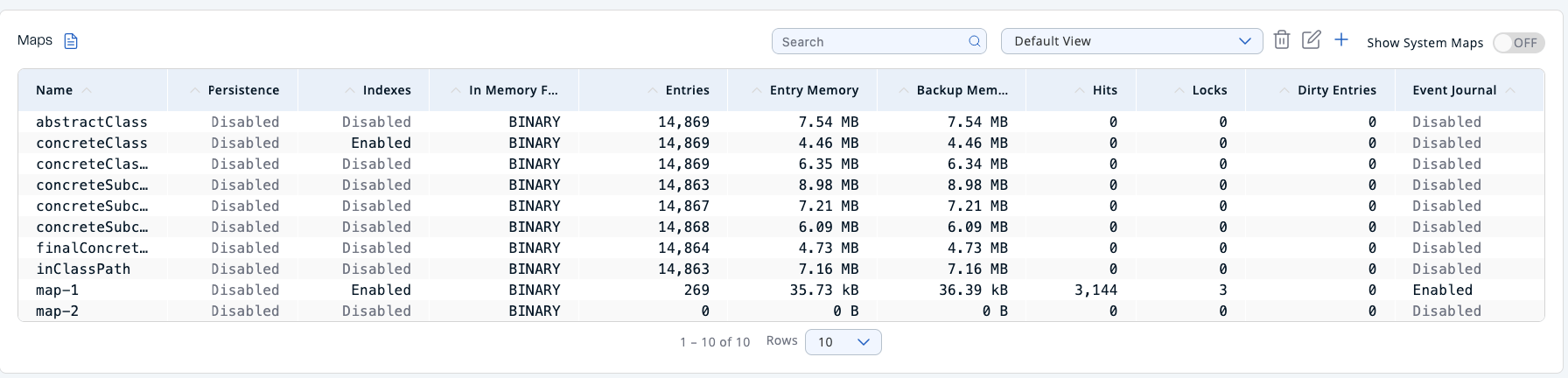
You can filter the maps shown and you can also sort the table by clicking on the column headers. Click on a map name to open a new page for monitoring that map instance on the right, as shown below.
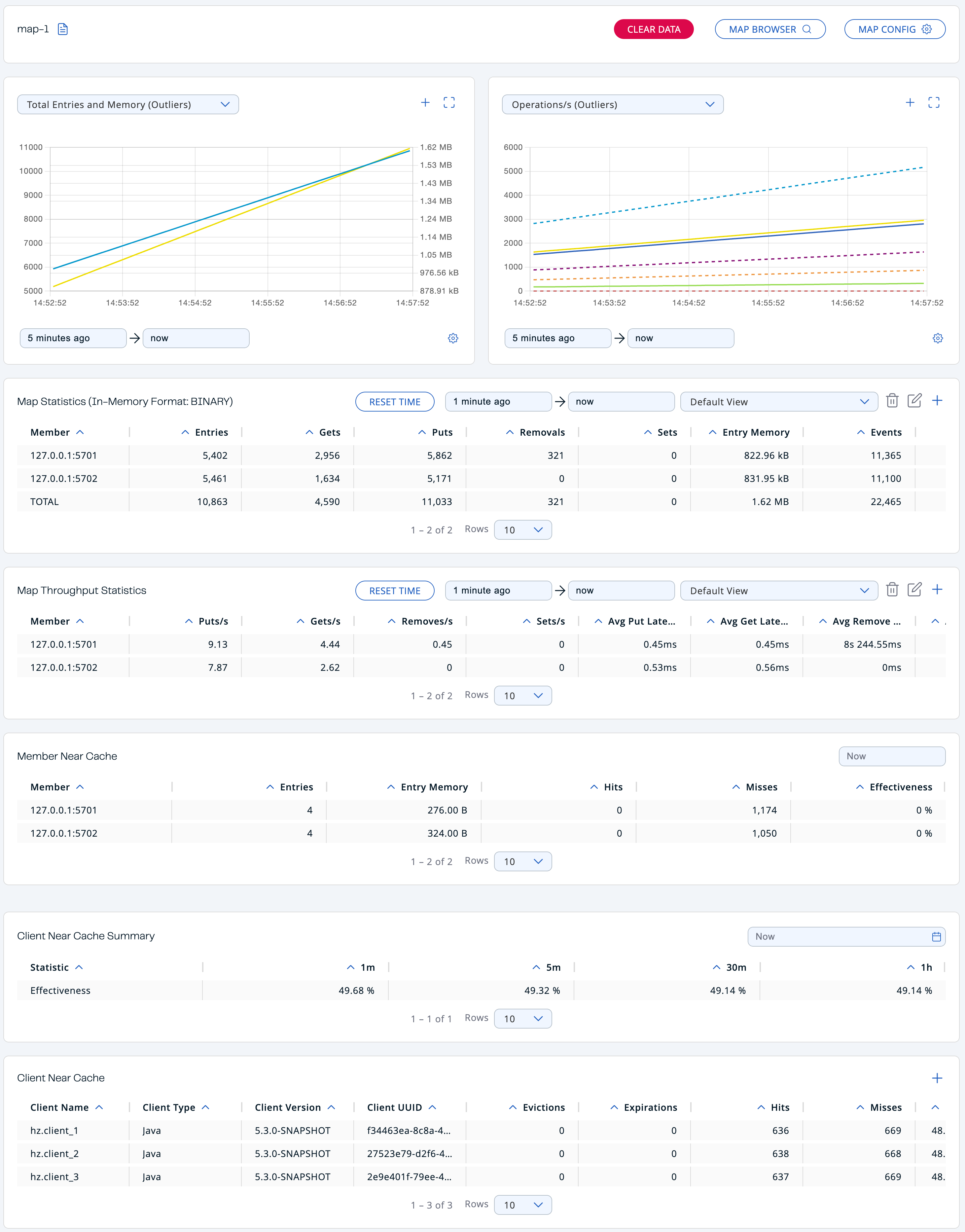
The sections below explain the portions of this window.
Remove entries from a map
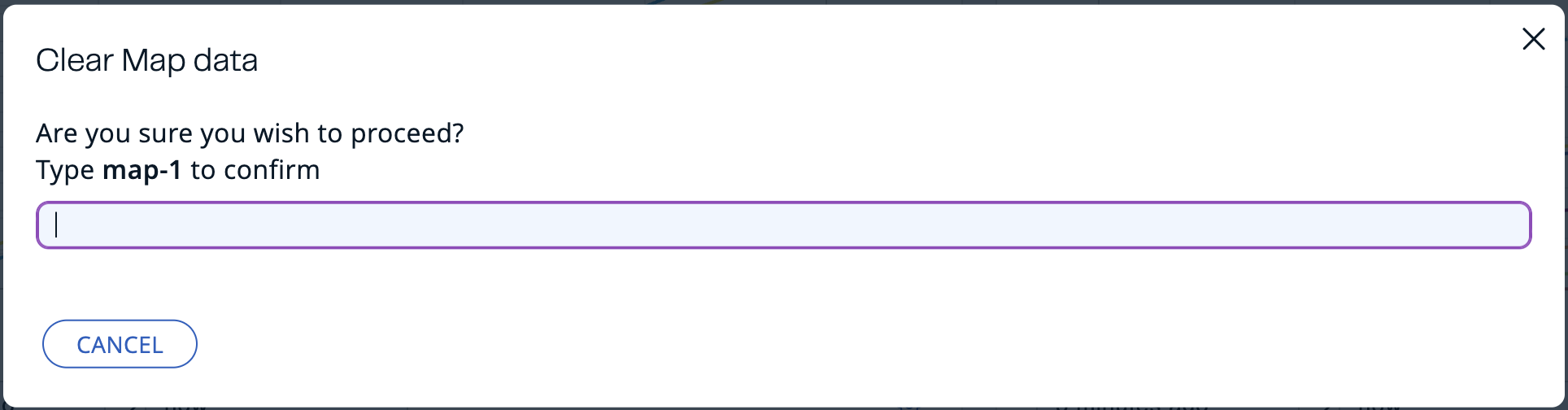
Use the Clear Data button to remove all entries from the map.

When prompted, enter the map name and confirm that you want to remove all entries from the map.
Explore map entries
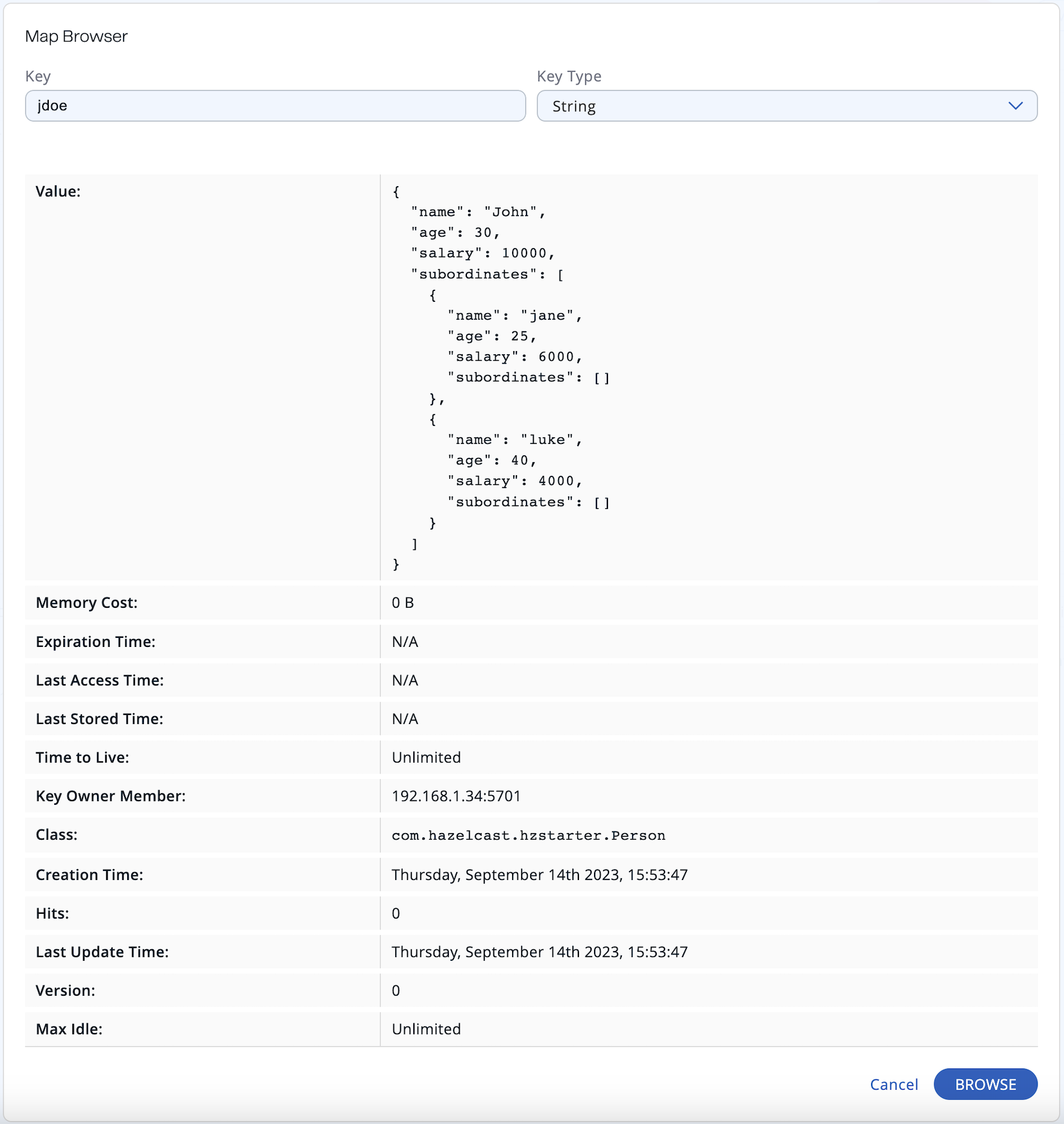
Use the Map Browser tool to retrieve properties of the entries stored in a selected map. To open the Map Browser tool, click on the Map Browser button, located at the top right of the window. Once opened, the tool appears as a dialog box, as shown below.
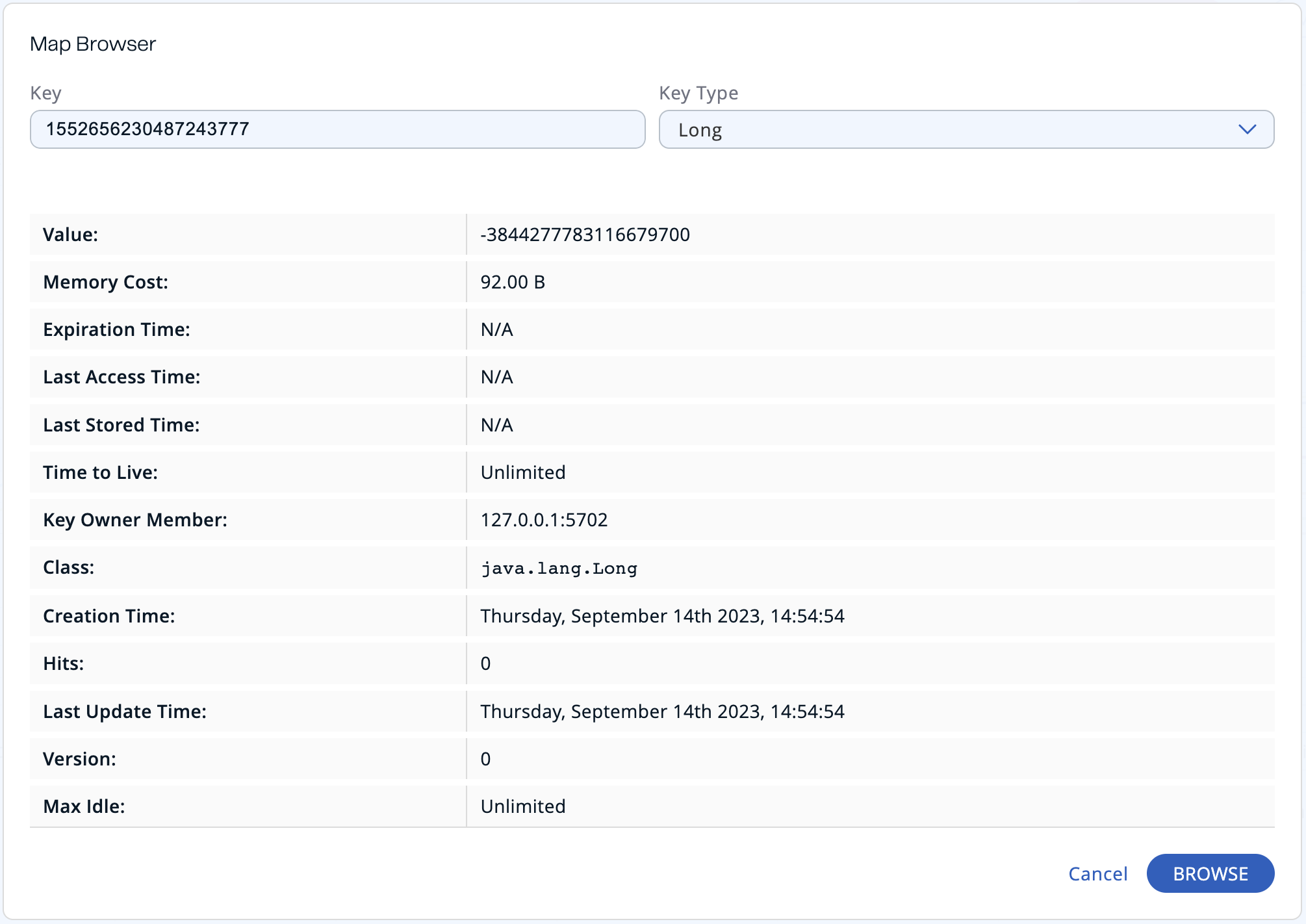
Specify the key and the key's type, then click the Browse button. The key's properties along with its value are listed.
| Field | Description |
|---|---|
| Value | Value that is associated with the key in the map. |
| Memory Cost | Space, in bytes, the key and value cost to be hold in memory. |
| Expiration Time | Time the key was expired and deleted from the map (depends on expiration policy configuration). |
| Last Access Time | Last time the clients read the key's value. |
| Last Stored Time | Last time the key was stored into the storage. |
| Time to Live | Last set time to live (in milliseconds). |
| Key Owner Member | Address of the member that is owner of the key. |
| Class | Key's Java class. |
| Creation Time | First time the key was put. |
| Hits | Count of reads by the clients for the key's value in a map. |
| Last Update Time | Last time the key's value was updated. |
| Version | Count of times when the key's value has been overwritten. |
| Max Idle | Last set max idle time (in milliseconds). |
To get all these fields, the map must have its per-entry-stats-enabled element set to true. See the Reading Map Metrics section.
If you are using a serialization mechanism other than standard Java serialization for storing values in your map, you need to configure the client that Management Center uses for connecting to the cluster (as described here). Note that if you have any custom classes, you need to add the JAR containing them to Management Center's classpath before starting it as described in Providing an Extra Classpath. In case the value stored in the map is not a String or of another Java primitive type, it is rendered as a JSON value as shown below:
Management Center allows you to access contents of Hazelcast data structures (for instance map entries) via SQL Browser or Map Browser. It may be useful to restrict data access for Management Center if sensitive financial or personal information is stored in the cluster. Management Center cannot access the data if at least one member has the data access disabled. You can disable data access for Management Center in the member configuration file. See the Managing Data Access section.
Configure a map
Use the Map Config tool to set the selected map's attributes, such as the max size, TTL, and eviction policy. To open the Map Config tool, click on the Map Config button, located at the top right of the window. Once opened, the tool appears as a dialog box, as shown below.
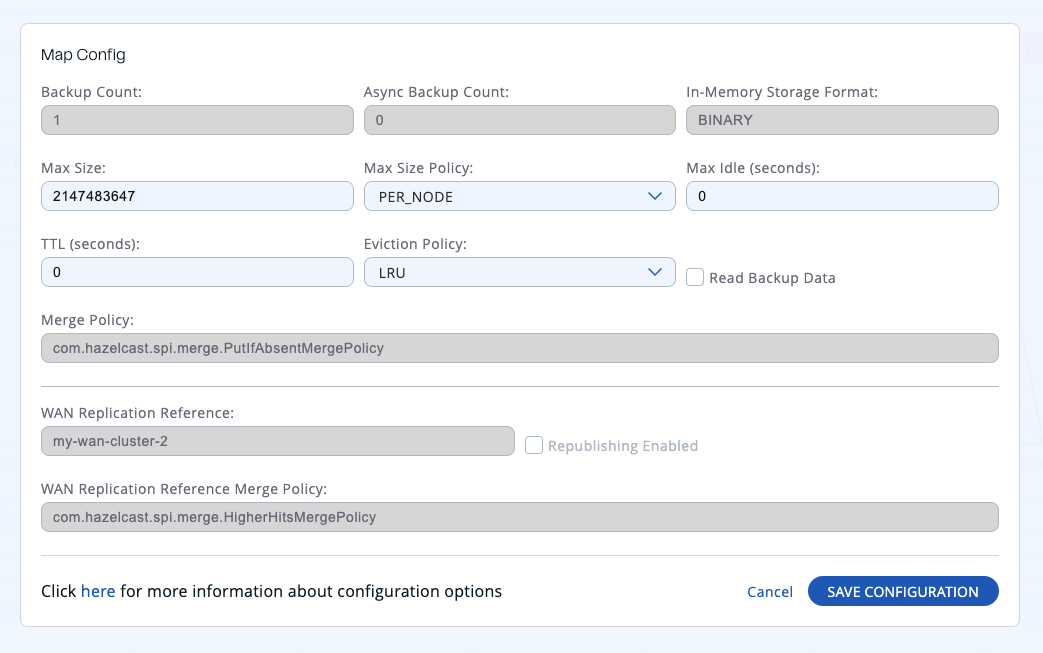
Change any attribute and click the Save Configuration button to save your changes.
The Map configuration is updated only on the members that Management Center is aware of at the time of the update. When a new member joins the cluster, the updated map configuration is not propagated to it. If a member has persistence enabled, the updated map configuration is not persisted to disk and the updates are lost on the next restart.
Monitor a map
In addition to the Map Browser and Map Config tools, the map monitoring page shows two graphs that display various map metrics. See the graph section for more information.
Under these charts are Map Statistics, Map Throughput, Member Near Cache, and Client Near Cache data tables.
The Map Statistics table provides statistics distributed over the members, as shown below.

From left to right, this table lists the following:
| Field | Description |
|---|---|
| Members | IP address and port of the member. |
| Entries | Number of entries owned by the member. |
| Gets | Number of get operations received by the member. |
| Puts | Number of put operations received by the member. |
| Removals | Number of remove operations received by the member. |
| Sets | Number of local set operations received by the member. |
| Entry Memory | Memory cost of owned entries in the member. |
| Backups | Number of backup entries held by the member. |
| Backup Memory | Memory cost of backup entries held by the member. |
| Events | Number of map events received by the member. A map event is triggered when a map entry is added, removed, updated, evicted, expired, merged, loaded, invalidated, or included in the "evict all" or "clear all" operations. |
| Hits | Number of hits (reads) of the entries that are owned by the member, including those which are no longer in the map (for example, may have been evicted). The number of hits may be inaccurate after a partition is migrated to a new owner member. |
| Locks | Number of currently locked entries owned by the member. |
| Dirty Entries | Number of entries that the member owns and are dirty (updated but not persisted yet). In the cases where MapStore is enabled, these are the entries that are put to/removed from the map but not written to/removed from a database yet. |
To display entries in ascending or descending order, click on the column headings.
The Map Throughput Statistics table provides information about the operations (get, put, remove) performed on each member in the map, as shown below.

From left to right, this table lists the following:
| Field | Description |
|---|---|
| Members | IP address and port of the member. |
| Puts/s | Number of put operations per second on the member. |
| Gets/s | Number of get operations per second on the member. |
| Removes/s | Number of remove operations per second on the member. |
| Sets/s | Number of local set operations per second on the member. |
| Avg Put Latency | Average latency of put operations on the member. |
| Avg Get Latency | Average latency of get operations on the member. |
| Avg Remove Latency | Average latency of remove operations on the member. |
| Avg Set Latency | Average latency of set operations on the member. |
| Max Avg Put Latency | Maximum average latency of put operations on the member. |
| Max Avg Get Latency | Maximum average latency of get operations on the member. |
| Max Avg Remove Latency | Maximum average latency of remove operations on the member. |
| Max Avg Set Latency | Maximum average latency of set operations on the member. |
Select the time period in the combo box found in the top right corner of the window, for which the table data will be shown. Available values are Since Beginning, Last Minute, Last 10 Minutes and Last 1 Hour.
To display listings in ascending or descending order, click on the column headings.
The Member Near Cache table provides information about the Member Near Caches, if available, on each member, as shown below.

From left to right, this table lists the following:
| Field | Description |
|---|---|
| Members | IP address and port of the member which has Near Caches defined for the maps. |
| Entries | Count of the entries in each Near Cache. |
| Entry Memory | Memory cost of the entries in each Near Cache. |
| Hits | Count of the entries read from the Near Cache. |
| Misses | Count of the entries which cannot be found in the Near Cache when requested to read. |
| Effectiveness | Hits/total reads ratio. |
To display listings in ascending or descending order, click on the column headings.
The Map Index Statistics table provides statistics for each index in a map.
This table is displayed only if the map has at least one index. To learn how to create indexes, see Indexing Maps in the Hazelcast Platform documentation.
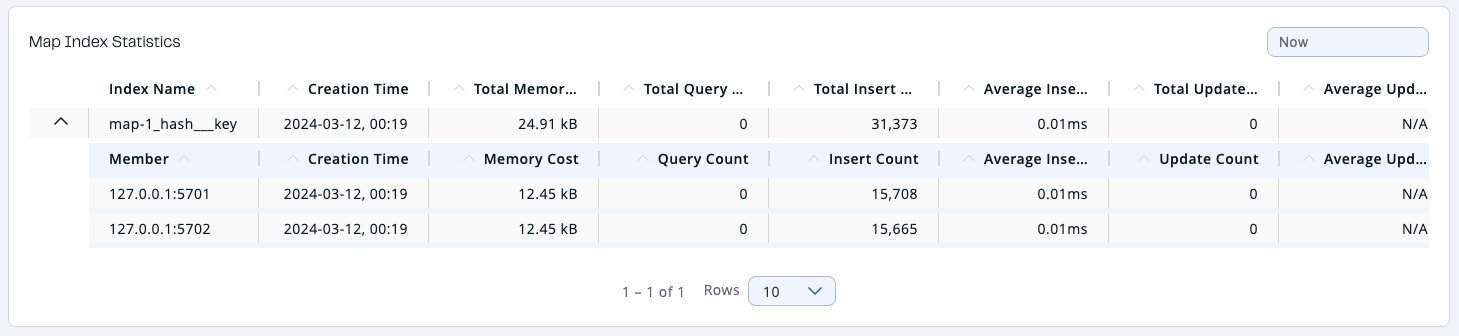
You can see member-level statistics for each index by clicking on the down arrow next to the index name.
From left to right this table lists the following:
| Field | Description |
|---|---|
| Index Name | Name of the index which was created for this map. |
| Creation Time | The first time that the index was created on a member in the cluster. |
| Total Memory Cost | Total used memory for this index across all members in the cluster. |
| Total Query Count | Total number of queries served by this index across all members in the cluster. |
| Total Insert Count | Total number of insert operations performed on this index across all members in the cluster. |
| Average Insert Time | Average time of insert operations performed on this index across all members in the cluster. |
| Total Update Count | Total number of update operations performed on this index across all members in the cluster. |
| Average Update Time | Average time of update operations performed on this index across all members in the cluster. |
| Total Remove Count | Total number of remove operations performed on this index across all members in the cluster. |
| Average Remove Time | Average time of remove operations performed on this index across all members in the cluster. |
| Total Hit Count | Total number of index hits for this index across all members in the cluster. |
| Average Hit Time | Average time of index hits performed on this index across all members in the cluster. |
| Average Hit Selectivity | Average selectivity of the hits served by this index across all members in the cluster. |
| Field | Description |
|---|---|
| Member | IP address and port of the member which has a partition of the index. |
| Creation Time | Creation Time of the index for this member. |
| Memory Cost | Local memory cost of the index for this member. |
| Query Count | Number of queries served by the index for this member. |
| Insert Count | Number of insert operations performed on the index for this member. |
| Average Insert Time | Average time of insert operations performed on the index for this member. |
| Update Count | Number of update operations performed on the index for this member. |
| Average Update Time | Average time of update operations performed on the index for this member. |
| Remove Count | Number of remove operations performed on the index for this member. |
| Average Remove Time | Average time of remove operations performed on the index for this member. |
| Hit Count | Number of index hits for this member. |
| Average Hit Time | Average time of index hits performed on the index for this member. |
| Average Hit Selectivity | Average selectivity of the hits served by the index for this member. |
To display listings in ascending or descending order, click on the column headings.
Client Near Cache Summary provides summary information related to the Near Cache statistics aggregated for all the clients that have Near Cache enabled for this map. Aggregated statistics are shown for the following periods: 1 minute, 5 minutes, 30 minutes and 60 minutes. Currently, the table shows overall Near Cache effectiveness, calculated as hits/total reads ratio.
You need to enable the statistics for clients to see them here. See Monitoring Clients for details.

The Client Near Cache table provides information about the Near Caches statistics, if available, on each client that has Near Cache enabled for this map, as shown below.
You need to enable the statistics for clients to see them here. See Monitoring Clients for details.

From left to right, this table lists the following:
| Field | Description |
|---|---|
| Client Name | Name of the client instance which has Near Cache defined for the map. |
| Client Type | Type of the client. |
| Client Version | Version of the client. |
| Client UUID | Client unique identifier. |
| Evictions | Number of evictions of Near Cache entries owned by the client. |
| Expirations | Number of TTL and max-idle expirations of Near Cache entries owned by the client. |
| Hits | Number of hits (reads) of Near Cache entries owned by the client. |
| Misses | Number of misses of Near Cache entries owned by the client. |
| Effectiveness | Hits/total reads ratio. |
| Owned Entry Count | Number of Near Cache entries owned by the client. |
| Owned Entry Memory Cost | Memory cost of Near Cache entries owned by the client. |
To display listings in ascending or descending order, click on the column headings.