Deploy a client filter list from the UI
You can define filter lists to allow or disallow client connections to clusters, using the Management Center UI.
Before you begin
Configure your Hazelcast clients with one or more failover clusters to make sure that disconnected clients can connect to another cluster. For a tutorial, see Deploy blue-green clusters.
You can deploy either an allow list or a deny list to a cluster, not both. If you deploy an allow list, the cluster disallows connections from any clients that aren't in the allow list. If you deploy a deny list, the cluster allows connections from any client that isn't in the deny list.
Create a filter list
-
Enable client filtering on the connected cluster.

-
Click New List.
-
Give the list a name, a status, and a type.
-
In the entries section of the form, add one or more entries for the list, and click Add Entry +.
-
Click Save.
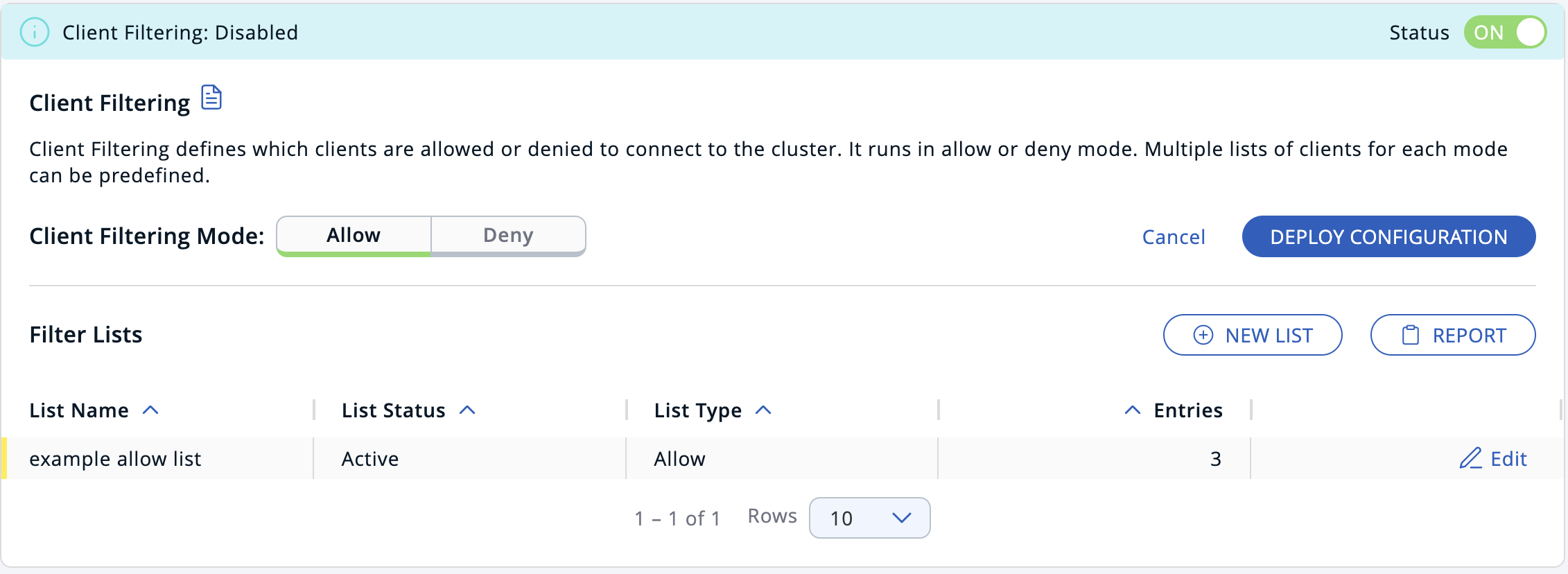
The orange status indicator means that the list has not yet been deployed to the cluster.
Deploy a filter list to a connected cluster
-
If you created an allow list, select the Allow-list tab to enter the allow mode. Or, if you created a deny-list, select the Deny-list tab to enter the deny mode.
-
Click Deploy Configuration to deploy the filter lists in your selected mode.
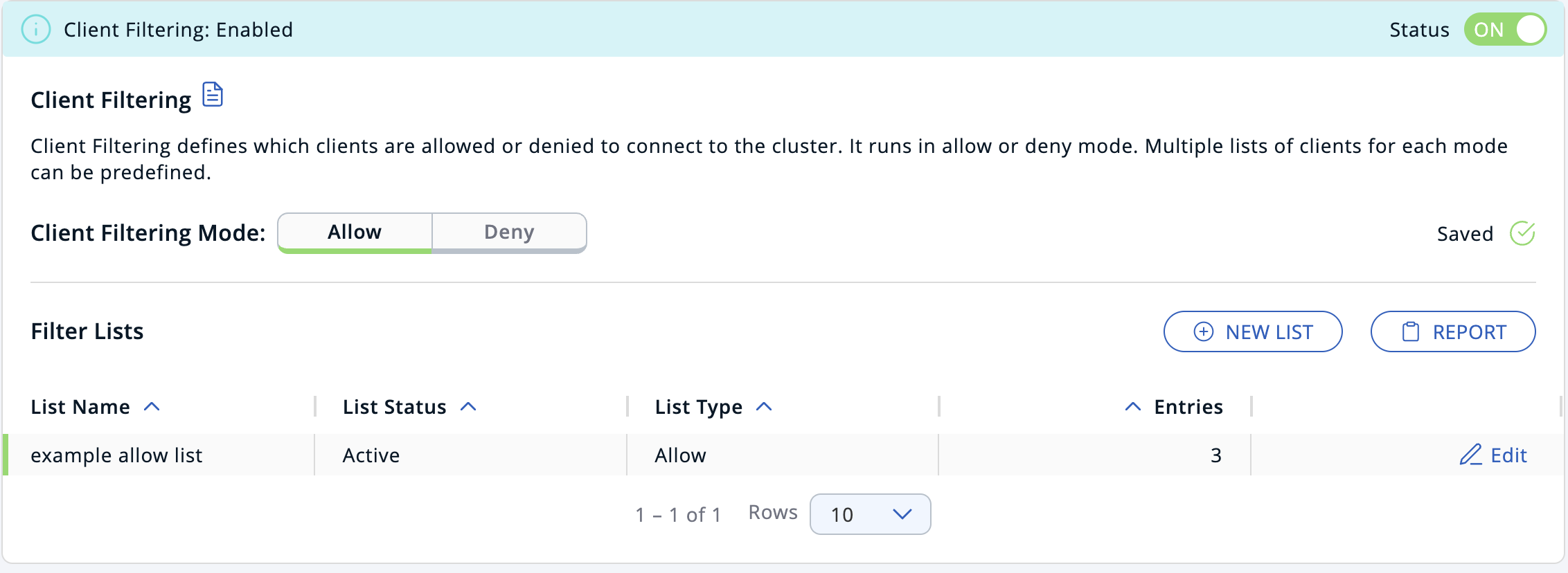
-
Click Report to see the list of deployed rules on your cluster.

Edit an existing filter list
- Click the Edit button on a list row.
- Make your changes.
- Click Save and Deploy to deploy the new list to the cluster.
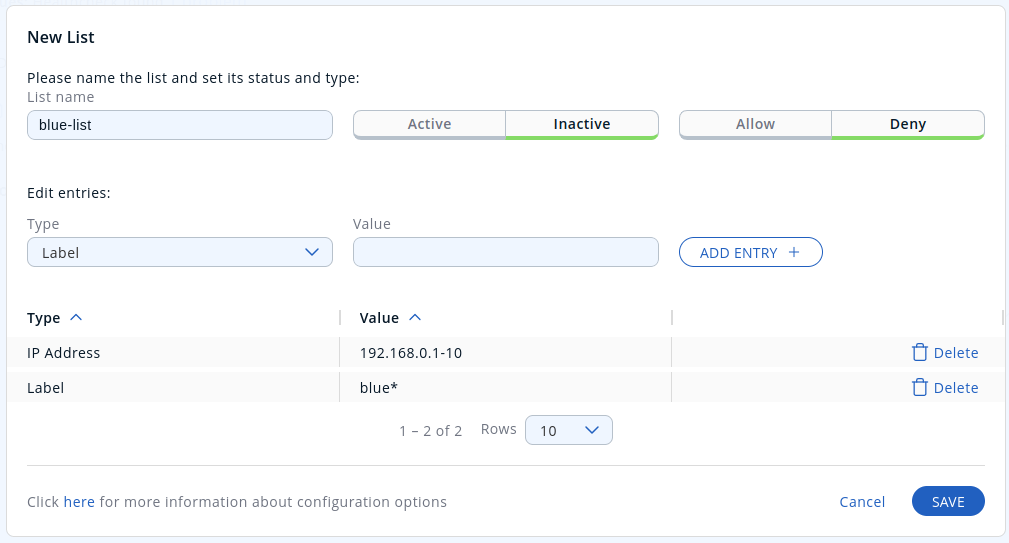
Delete an entry
- Click the Edit button on a list row.
- Click Delete next to the entry.
- Click Save and Deploy to deploy the new list to the cluster.
Disable an existing filter list
To keep a filter list saved in Management Center, but remove it from the cluster:
- Click the Edit button on a list row.
- Change the List Type field to Inactive.
- Click Save.
Delete a filter list
To delete an entire filter list from the cluster:
- Click the Edit button on a list row.
- Click Delete this list and deploy in the top-right corner.
You can also disable client filtering to delete all filter lists from the cluster.